
Home>Online tools & equipment>Web applications & software>Everything about Zoom
Everything about Zoom
Take control of your meetings and classes with videoconferencing
All about Zoom?
Zoom is a videoconferencing and virtual classroom tool. This tool is used by our teaching and student community to organise distance learning courses. Zoom can also be used for videoconferencing meetings.
Access Zoom: https://sciencespo.zoom.us/
Reminder: to access your account, click on ‘Sign in’ then on the ‘Sign in with Google’ button and finally use your email address prenom.nom@sciencespo.fr and your Sciences Po password):


Getting started with Zoom for teacher
To learn how to set up your virtual classes or meetings, consult this practical guide to getting started with Zoom.
Getting started with Zoom step by step:
- Connecting to Zoom
- Inviting your students to the virtual classroom
- Managing participants' microphones
- Troubleshooting common sound issues
- Using chat
- Sharing your screen
- Conducting a poll
- Allowing students to share their screens
- Recording your virtual classroom
- Using the whiteboard
- Dividing my virtual classroom into subgroups
Getting started with Zoom for students
To get the most out of your virtual classroom experience, you first need to ‘learn how to learn remotely’: ‘Learning remotely’ tutorial
Step-by-step guide to using Zoom:
At Sciences Po, as elsewhere, the choice of an information system is based on criteria that are sometimes contradictory: efficiency, quality of service, ergonomics and ease of use, ‘Education’ features, data protection, configuration options for different types of users, and cost. Choosing a new tool therefore requires a careful balance of all these criteria. With the COVID-19 health crisis, Sciences Po's educational continuity plan recommended the rapid implementation of a stable, high-performance videoconferencing tool that is a benchmark in the academic world. Sciences Po had already worked on a benchmark of videoconferencing solutions. Its analyses and tests led to the choice of Zoom:
- Zoom is the most stable and high-performance solution among those studied, ensuring the smooth continuity of the academic year (Gartner's Magic Quadrant ranks this solution among the best-performing services currently available based on these criteria);
- Zoom is a sufficiently robust solution to handle a very large number of videoconferences in parallel with many simultaneous participants. (18,000 accounts and over two weeks: 10,900 meetings and virtual classes, which welcomed more than 106,000 users);
- Zoom provides access to meetings and teaching for all our students, who are now back home, including in countries where certain other solutions are not authorised;
- Zoom is a solution that complies with the main videoconferencing standards. This solution integrates easily into existing information systems;
- Sciences Po can count on highly responsive commercial and technical support from the Zoom teams;
- Zoom is a benchmark tool in the academic world (used by Harvard, etc.) and more broadly around the world (now used by more than 200 million people).
The press and social media have reported security flaws in the Zoom solution. Sciences Po is closely monitoring Zoom's diligence in responding to each of these criticisms:
- Zoom has released security patches (for Mac users and for the UNC link issue);
- Zoom has permanently removed/modified the features in question as soon as unnecessary data transfers or disclosures were identified (the LinkedIn Sales Navigator application, the Facebook software development kit (SDK) it initially used);
- Zoom has implemented a comprehensive security programme (IT penetration testing, upcoming publication of a transparency report, 90 R&D engineers at Zoom dedicated entirely to application security since 1 April, etc.);
- Zoom has clarified its data encryption policy: in a meeting where all participants are using Zoom, none of a participant's video, audio, screen sharing or chat content can be decrypted before it reaches the other participants' workstations.
- In version 5, released on 27 April 2020, Zoom has integrated AES 256 encryption.
The release of version 5 marks a major milestone in Zoom's security plan: as of 30 May 2020, it will no longer be possible to access a Zoom meeting from a version earlier than version 5.
Data security is not limited to the solution itself, but also to the proper compliance with the advice and rules of use indicated by Sciences Po to its users.
To actively contribute to everyone's security, Sciences Po therefore asks its users to:
- carefully read this FAQ and the user guides, and comply with the Zoom-SciencesPo terms and conditions of service, the Sciences Po security guide and the information systems usage charter;
- regularly update all devices (computers, tablets, etc.): operating systems and all software, including Zoom, which receives regular security updates;
- ensure the confidentiality of their personal passwords and the appropriate security level of their modem;
- never publicly share access links and passwords, or screenshots of meetings;
- consult the legal information and cookie settings for the Zoom tool at Sciences Po.
Yes. Free videoconferencing services available on the internet or offered by social networks do not offer the same guarantees of security and protection of your rights. It is strictly forbidden to use them for academic, research, documentation, and administrative activities within our institution.
Yes. Information system security measures require institutions and service providers to record users' connection details (surname, first name, email address, IP address). These details are deleted within a maximum of one year.
1 - Add a password to my video conference
- Once the video conference has been scheduled (either with the Zoom Scheduler tool in Google Calendar or directly in Zoom), access the Zoom tool.
- Then, on the ‘Meetings’ tab (1), click on the ‘Edit’ button (2) for the video conference.


- Then tick the ‘Require meeting password’ option (3).
- Enter the password in the box to the right (4):

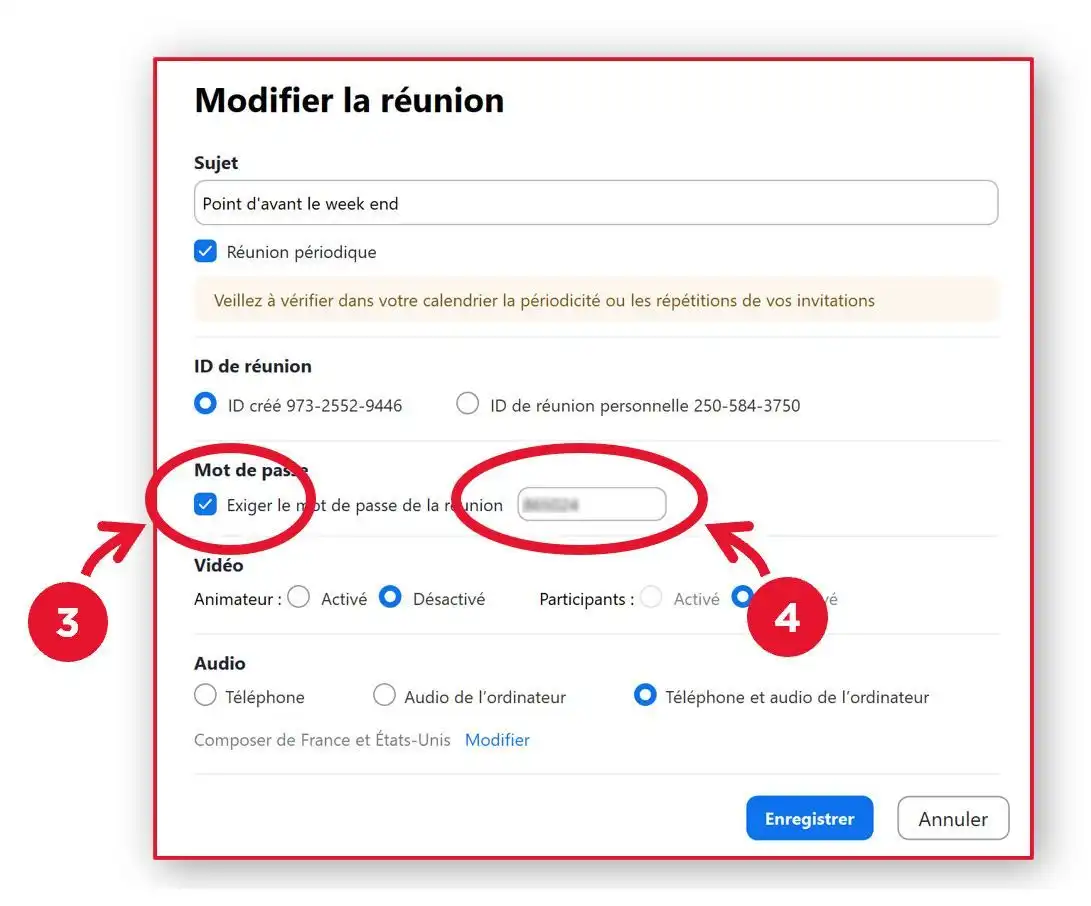
It is also possible to set up a standard password for all your future videoconferences (for more information, see the question ‘How can I optimise my videoconference settings?’).
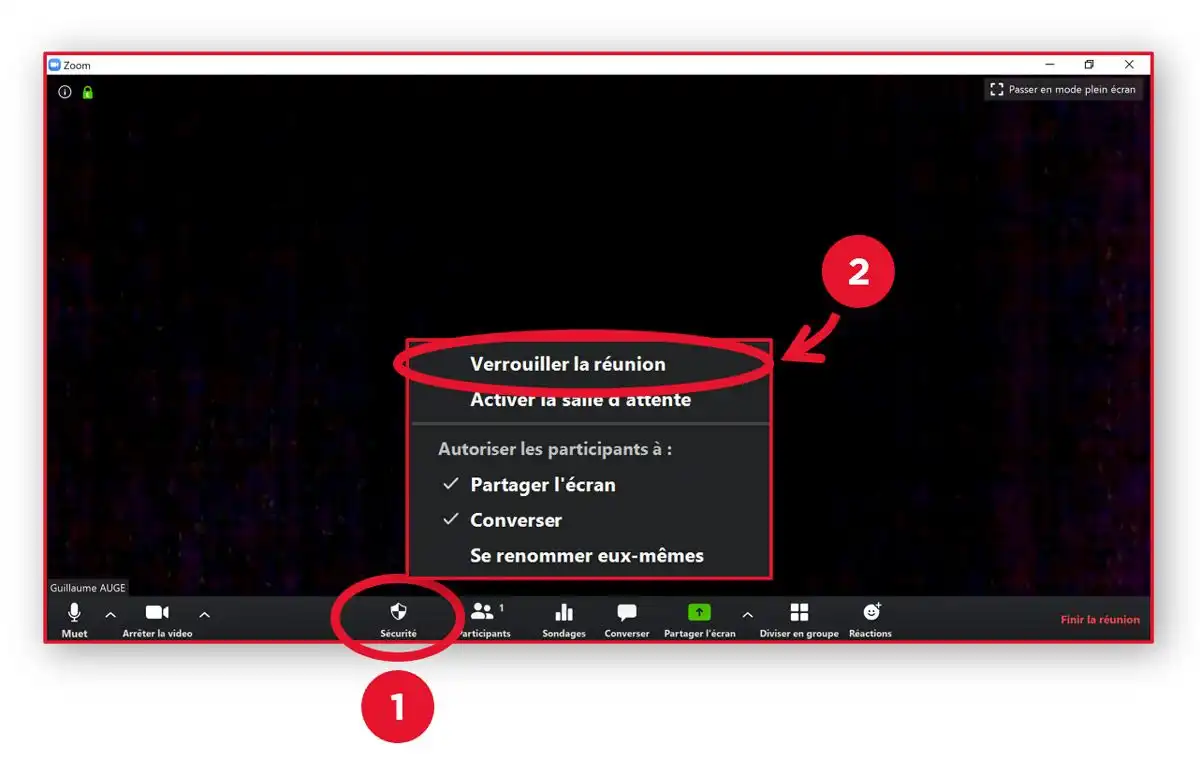
- Once the videoconference has started, click on the ‘Security’ button (1) and then on ‘Lock meeting’ (2):

1 - Add a password to all my future video conferences:
This procedure requires the installation of the ‘Google Scheduler’ extension in your browser.
- Launch your web browser.
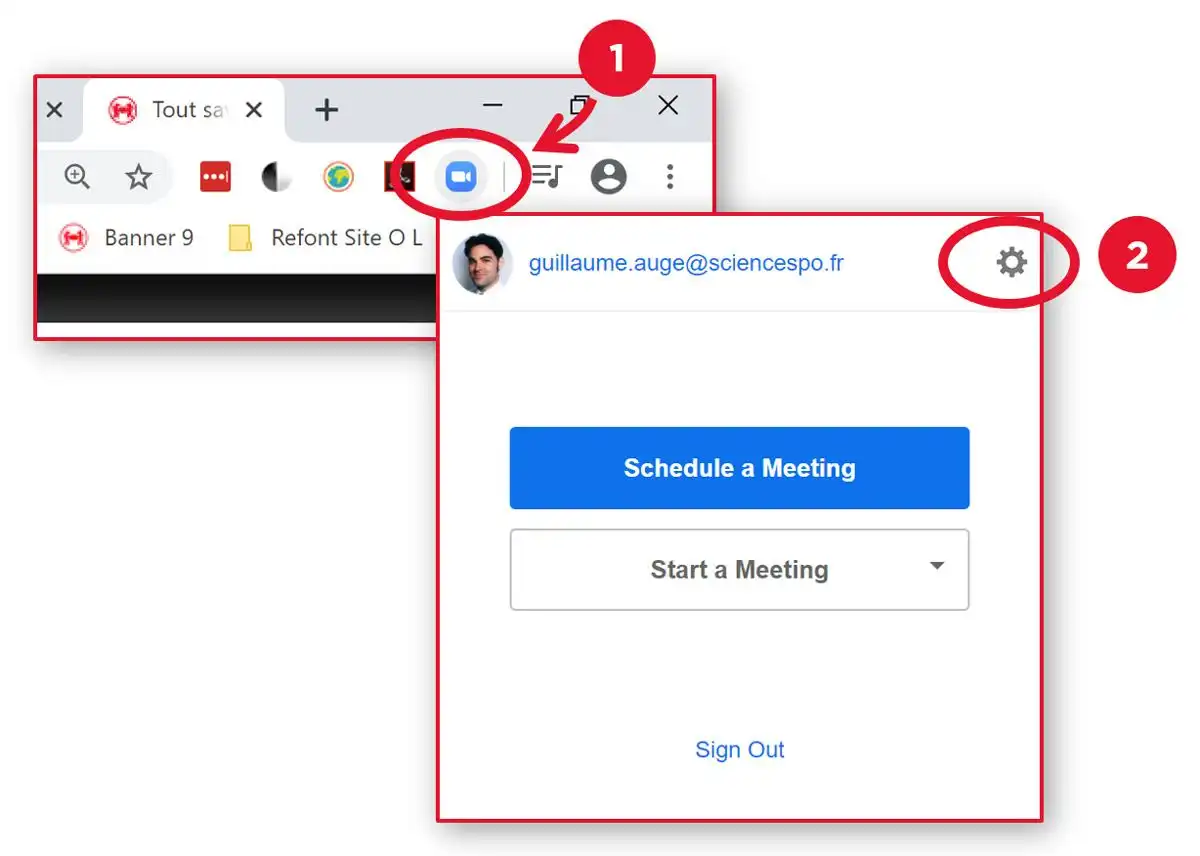
- At the top of the browser, click on the ZOOM Scheduler extension icon (1).
- Then, in the window that appears, click on the settings button shaped like a cog (2):

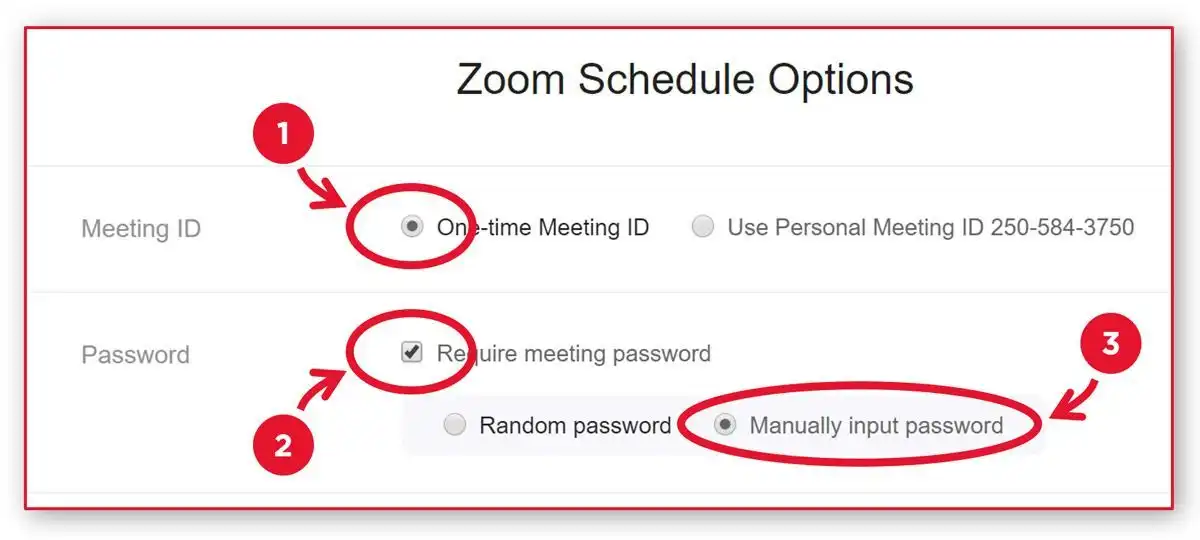
- In the ZOOM Scheduler options window, tick the ‘One-time Meeting ID’ option (1).
- Tick the ‘Require meeting password’ box (2)
- Finally, tick the ‘Manually input password’ option (3) so that Zoom Scheduler asks you to enter a password each time you organise a new video conference:

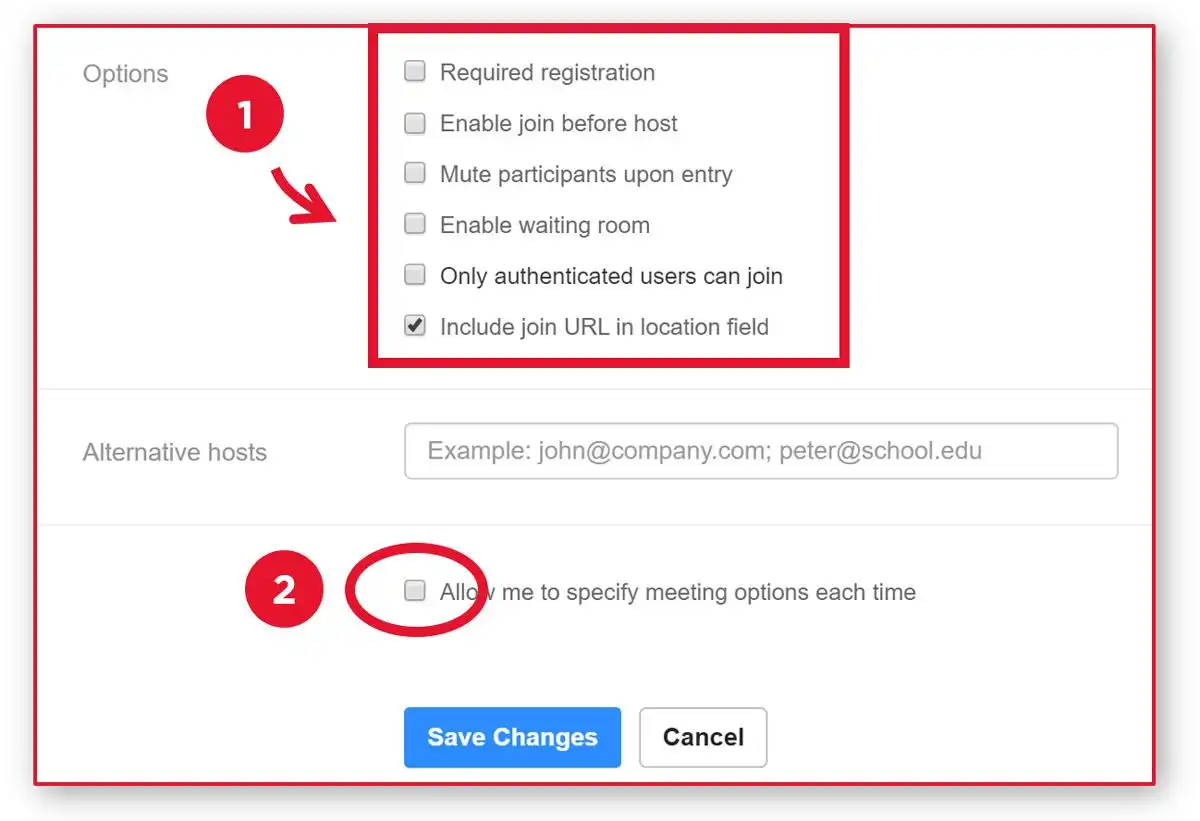
2 - Specify the options for all your future Zoom videoconferences
- Access the Zoom Scheduler options (see previous point).
- At the bottom of the window, tick or untick the desired options (1). Sciences Po recommends the settings shown in the screenshot below.
- If you want to be able to choose the options for each video conference when scheduling it in Google Calendar, tick the box ‘Allow me to specify meeting options each time’ (2):

3 - Manage your videoconference settings once it has started
- You can optimize all videoconference settings once it has started.
- In the videoconference window, click on the camera menu button (1) then on “Video settings...” (2):

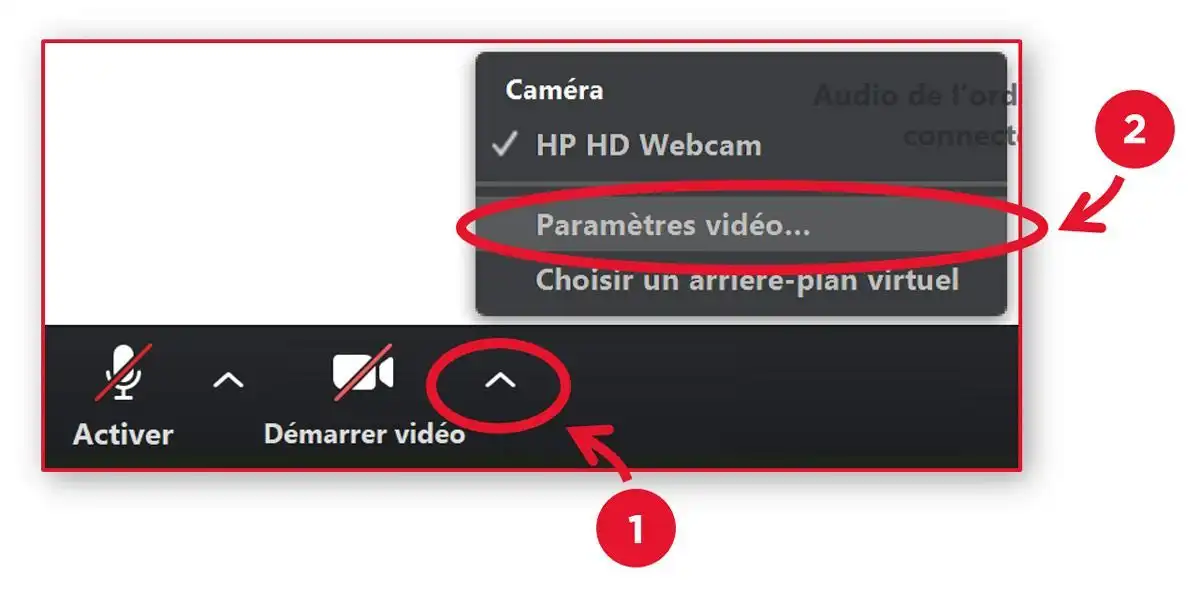
- Then navigate through the tabs in the left-hand menu and set the desired options.
- Classes are reserved for Sciences Po students. It is strictly forbidden to share links to virtual classrooms with third parties, particularly on social media. Only the teacher may invite an external participant, and only if that person has the status of guest speaker in the context of the course.
- For videoconferences that are not classes, staff, researchers, and teachers may of course invite external participants. These participants do not need to have a Zoom account.
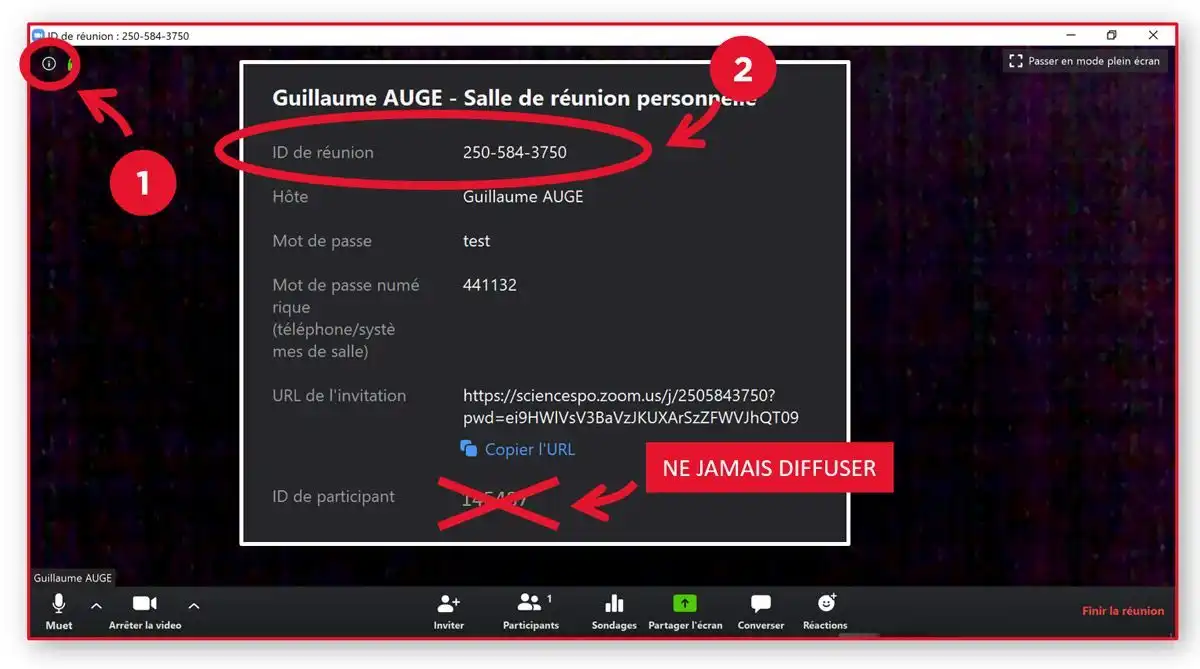
For security reasons, it is very important to only use the meeting ID and never disclose your personal ID.
- Once the videoconference has started, click on the information button at the top left of the window (1).
- The meeting ID is located at the top of the information in the window that appears (2):

Zoombombing is a practice that involves sharing inappropriate content or making loud and offensive comments during a class or meeting. We quickly blocked participants from sharing their screens to prevent zoombombing. Zoom has since blocked this feature by default.
To stop any inappropriate audio interference from a participant during a video conference, you must:
1 - Mute all participants' microphones
- To do this, in the video conference window, click on the “Participants” button (1), then on the “Mute All” button (2) on the right:

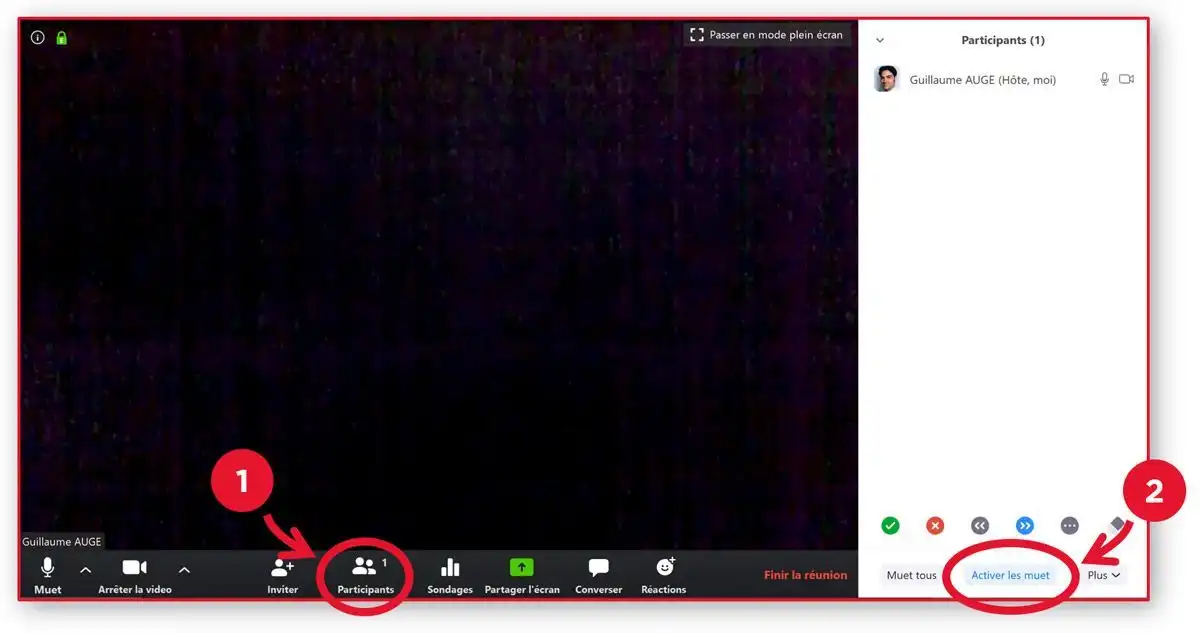
For more information, see the tutorial on managing participant microphones.
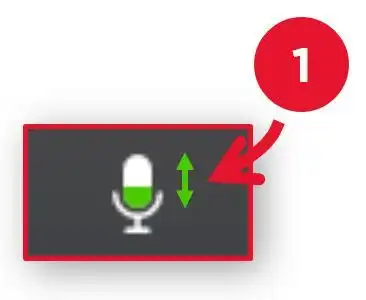
2 - Identify the troublemaker when they speak
- To do this, reactivate the participants' microphones and locate the microphone icon whose green volume gauge varies when the troublemaker speaks:

3 - Exclude the troublemaker from the videoconference
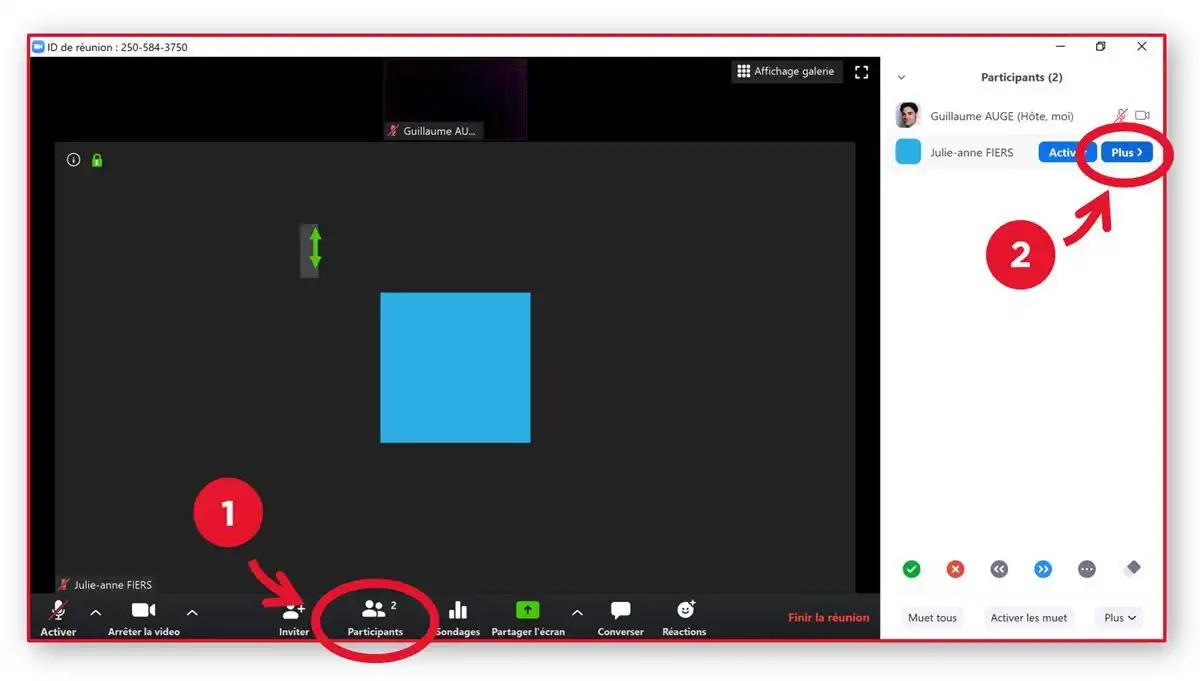
- To do this, in the videoconference window, click on the “Participants” button (1). Then hover your mouse over the name of the person you want to exclude from the meeting and click on the “More” button that appears (2):

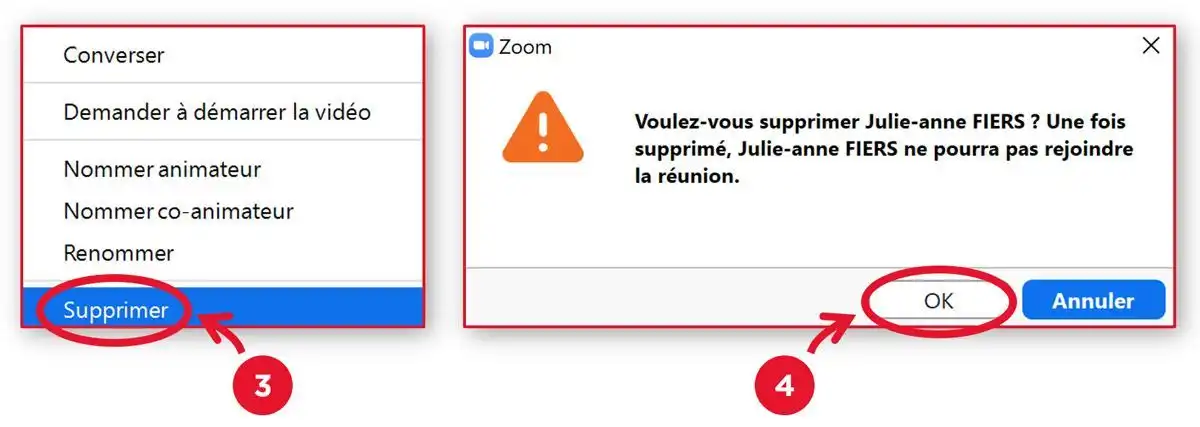
- In the menu that appears, click on “Remove” (3) and confirm the participant's exclusion by clicking on “OK” when prompted (4):

In addition, Zoom settings have been adjusted to prevent screen sharing by participants who do not have host or co-host privileges.
The recording of videoconferences is reserved for courses for which students cannot access the virtual classroom live (due to time differences) or who have hardware constraints on their workstations, as well as for students preparing for competitive entrance exams (course recordings are included in their program).
Researchers identified by their Center Directors may also record interviews conducted as part of their research with the consent of the interviewees.
Recording requires the consent of participants and confirmation from the meeting organizer. You will therefore be informed of the recording of the videoconference, as a message will appear as soon as you log in, asking for your consent to the recording.
When a videoconference is recorded, only the video (capture), audio, screen sharing, and public messages exchanged in instant messaging are recorded.
Private elements such as private instant messages (i.e. sent to a specific person), participant thumbnails, and their identifiers (surname, first name, and username) are not recorded.
Finally, recordings (video recordings, audio recordings, public instant messages) cannot be made without the consent of the individuals involved.
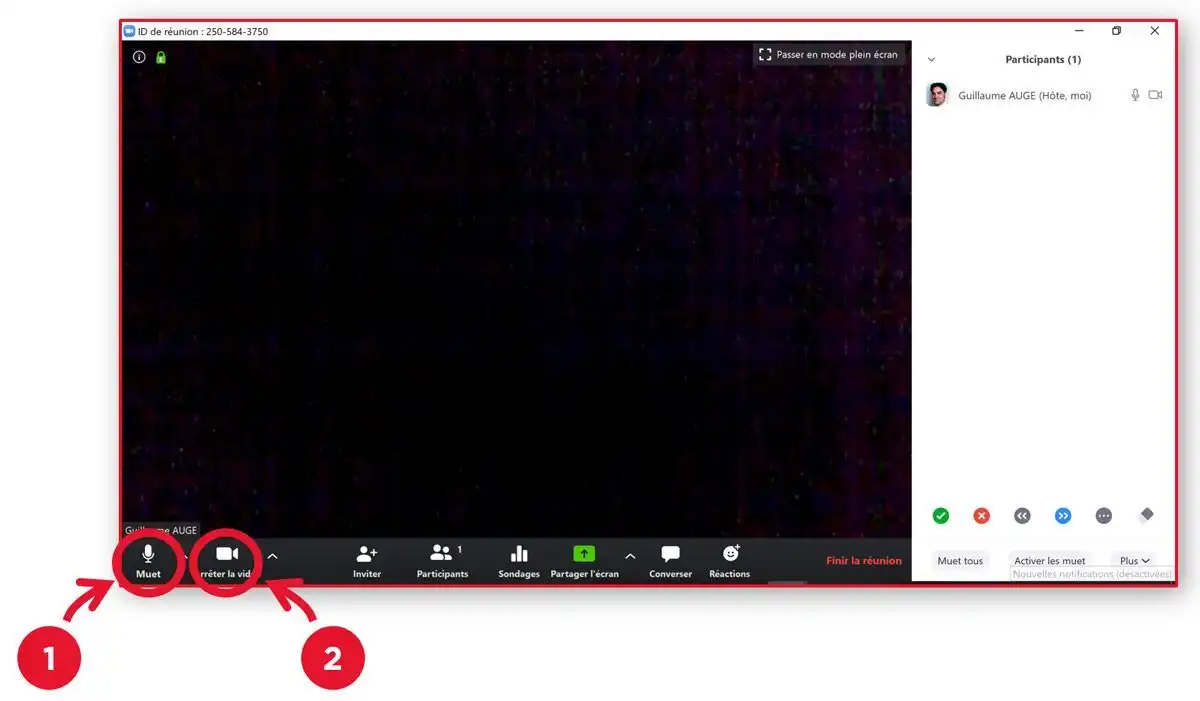
Turn off your microphone and camera
- To do this, in the videoconference window, click on the mute microphone button (1) and the camera button (2)

- If you are a teacher: The course video is recorded online on the Zoom Cloud. Teachers are responsible for retrieving the recording and then transferring it to a folder on Google Drive, whose access rights must be limited to the teaching group of the relevant teaching unit, and only with read-only rights (important: prevent downloading when sharing the video). For more information, see the guide on publishing a recording made on Zoom.
- If you are a student: your teacher will share the video with you on Drive. You will receive an email when it is shared. You can also find the video in the “Shared with me” folder in Google Drive or on Moodle if a course exists on this platform.
No. This feature, which had been blocked when Zoom was set up by Sciences Po administrators, was removed by Zoom on April 2, 2020, and is therefore no longer part of the tool's available functions.
The screen sharing feature is reserved by default for the host of the video conference. However, you can allow a participant to share their screen on request.
There are two options available to you for this.
1 - Allow all participants to share their screen
- Once the videoconference has started, click on the “Security” button (1) and then on “Share Screen” (2):

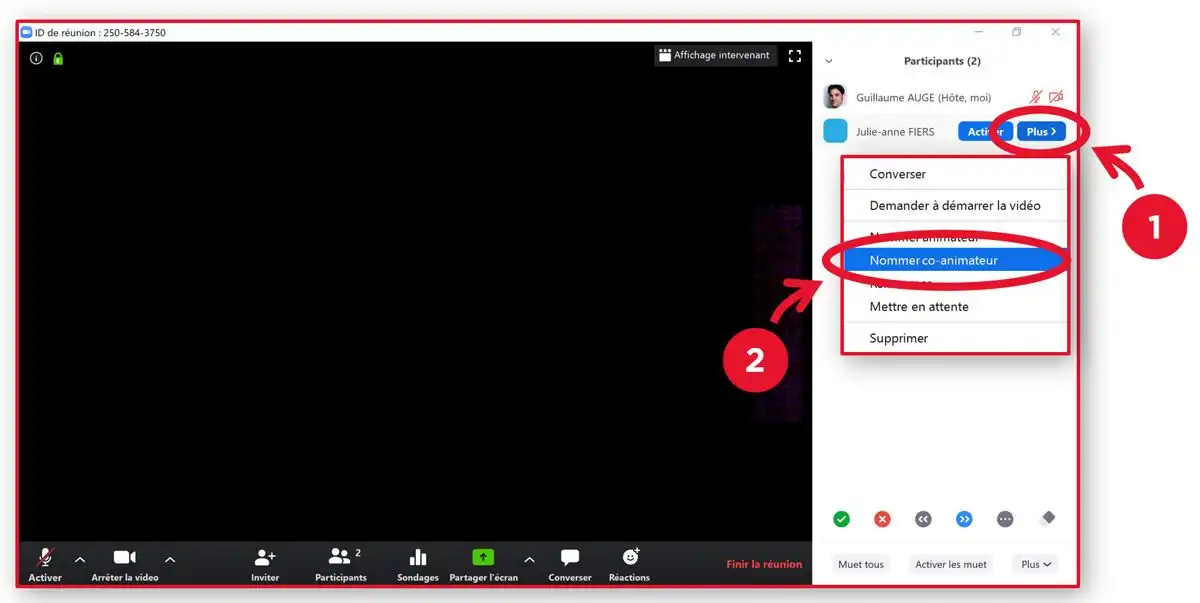
2 - Assign the role of co-host to a participant
Please note that this procedure gives the participant more extensive rights (the right to invite other participants, mute microphones, etc.).
- Once the videoconference has started, hover your mouse over the name of the participant you want to give the co-host role to and click on the “More” button (1).
- In the menu, click on “Appoint co-host” (2):
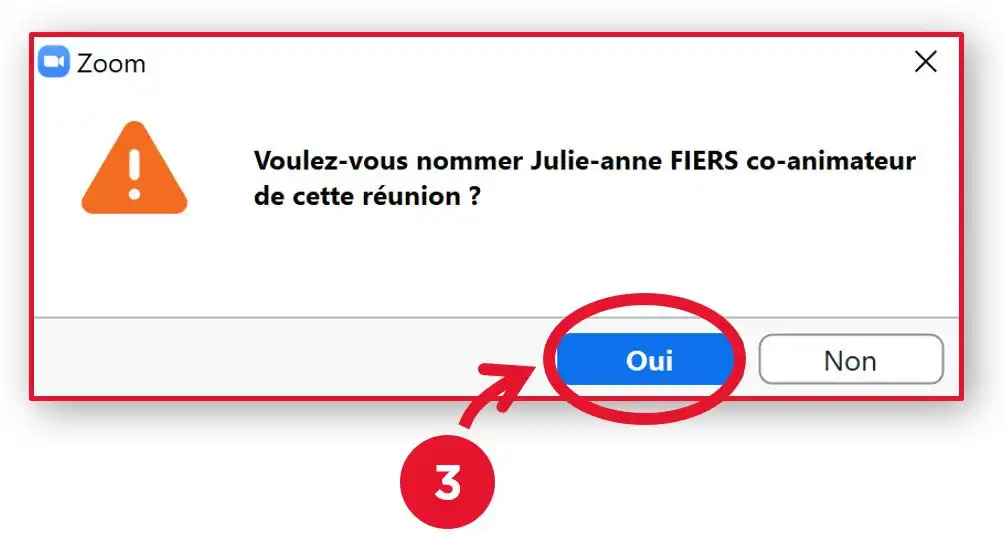
- Confirm the action by clicking “OK” (3):

For security reasons, it is essential to regularly check that you have the latest version of the Zoom software installed on your computer.
- To do this, launch Zoom, click on your profile picture (1) and then on “Check for Updates” (2):

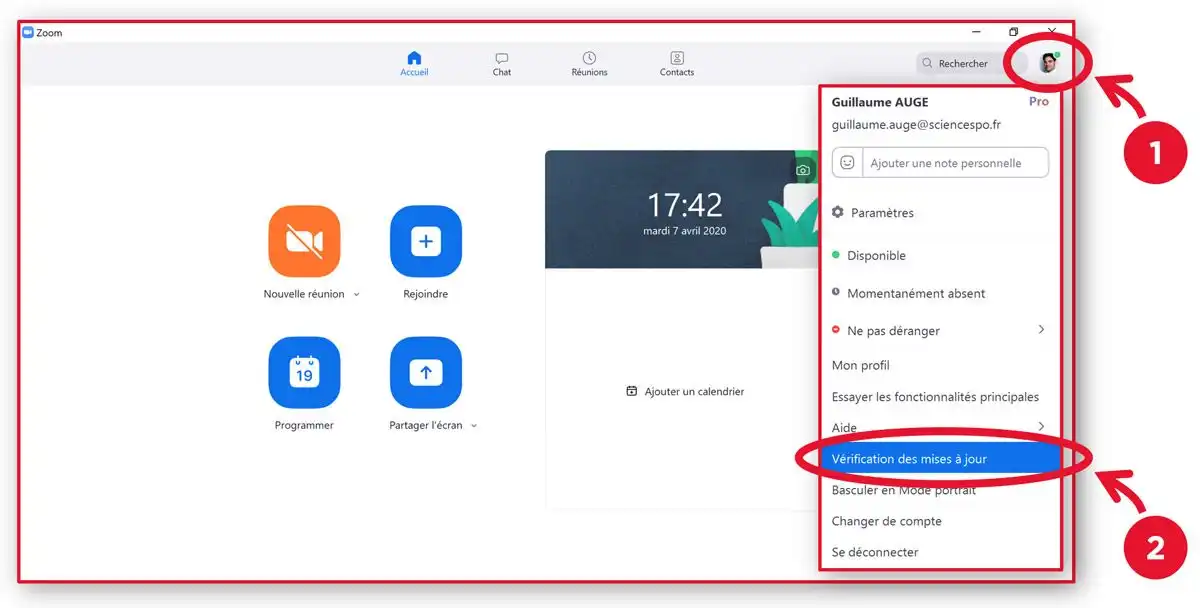
- If requested, follow the instructions to update your version of Zoom.
Sciences Po administrative staff do not need to perform this check as the software is automatically updated by the Information Systems Department.
If you have any questions
- For any questions about using ZOOM: ingenum@sciences-po.fr
- For any technical questions: contact the Helpdesk
- For any questions about data protection: cnil@sciencespo.fr