


Home>Data encryption with 7-ZIP
Data encryption with 7-ZIP
To store or transfer sensitive data, use the 7-Zip encryption tool.
Compress and encrypt files
- Make sure the recipient has 7-Zip installed and ask them to download it if they don’t. For your information, here is the link to send to enable your contact to install 7-Zip: on a PC: https://www.7-zip.org/ or on a Mac https://www.opensourcemacsoftware.org/utilitaire-mac/7zip-mac-7zx.html
- Select the file(s) to be encrypted
- Right-click on the files, select the ‘7-Zip’ menu, then ‘Add to archive’
- Check that the selected encryption method is AES 256
- Check that the ‘Encrypt filenames’ option is unchecked

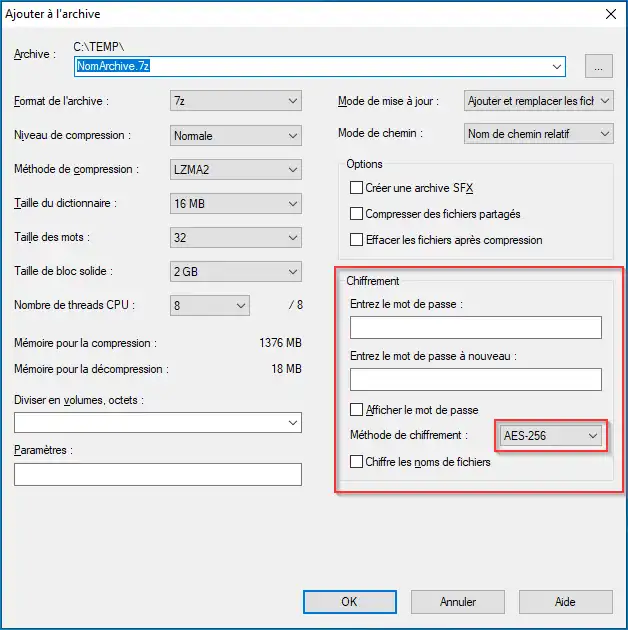
- Choose a password that is sufficiently long and complex
- Send the password to the recipient separately from the archive: tell them the password verbally (over the phone or via text message). Under no circumstances should you send the password and the file together via email
Open the compressed file
- Right-click on the 7-Zip file
- Open archive
- Enter the password